API keys
Connect your exchanges, wallets and brokers with read-only API keys so their balances sync automatically. Keys are stored encrypted and are write-only. Once saved they're never shown again; the app only shows whether a key is set. Banks connect differently, through a secure bank login with no keys to manage. See Bank connection setup.
How to use
- Create a read-only API key with your provider:
- Binance: enable only Reading.
- Coinbase: a read-only Advanced Trade key (enter the key name and its private key).
- Kraken: only the Query Funds permission.
- Bitstamp: only Account balance access.
- Bitvavo: only the View right.
- Bitpanda: any API key (Bitpanda's is read-only by nature).
- Bybit: a read-only key with Wallet and Earn read access.
- Zerion: a standard Zerion API key.
- Spiko: your investor API client ID and secret.
- Trading 212: a read-only key from the Trading 212 app.
- Interactive Brokers: a Flex Web Service token and Flex Query ID.
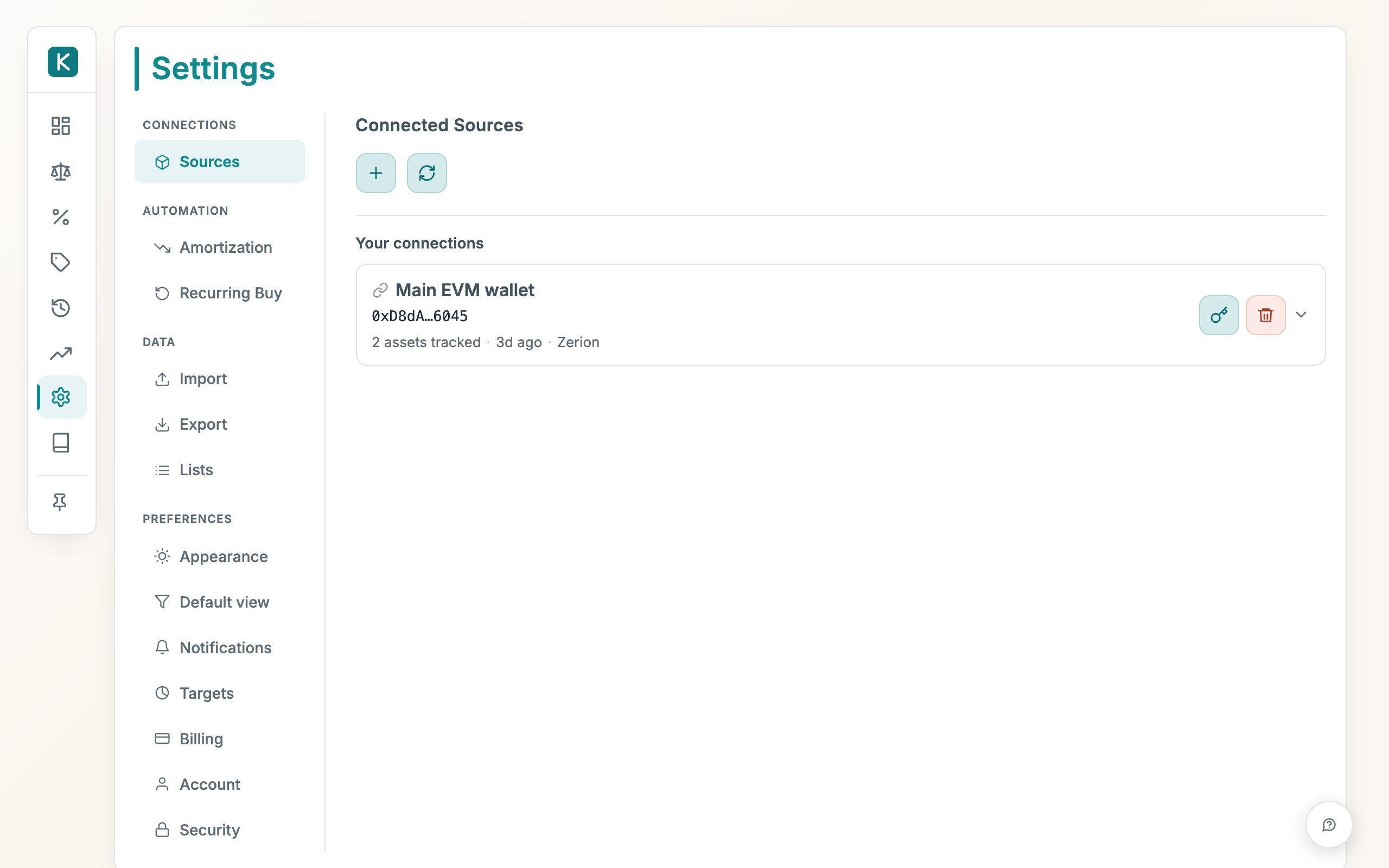
- Open Settings, go to Connected Sources, and add a connection. If the keys aren't set yet, the key fields appear right in the form, and saving stores them (encrypted) and creates the connection.
- Balances sync right after, so wrong keys show up immediately.
- To change or remove keys later, use the key button on the connection's card.
Good to know
- Never grant trade or withdrawal permissions. The app only ever reads balances, so a read-only key keeps your funds safe even if it leaks.
- Keys are write-only. After saving they're never shown again; the app only tells you whether a key is set.
- Removing a key turns that connection's sync off until you add one again.
- Bank accounts don't use API keys. They connect through a secure bank login. See Bank connection setup.